Platform migration
WordPress to Webflow migration: how to keep your rankings
Moving from WordPress to Webflow is a rebuild, and post URLs often change. This guide covers the URL structure, redirects and SEO settings that keep rankings intact.
A WordPress to Webflow migration keeps its rankings when the content comes across intact, every changed URL gets a 301 redirect to its new address, and the SEO settings WordPress plugins used to handle are recreated in Webflow. The design is the visible part of the project. The URL work is the part that protects traffic.
Webflow states that there is no automated way to convert a site from another platform, and that moving to Webflow is a rebuild rather than a transfer (Webflow Help Center). Pages are rebuilt in the Designer, structured content is imported into the CMS, and redirects are configured by hand or with patterns.
What moves from WordPress to Webflow and how
Static pages are rebuilt, structured content is imported through CSV into CMS collections, and plugin features are replaced with native Webflow features, third party tools or custom code.
| WordPress | Webflow | Method |
|---|---|---|
| Pages | Static pages | Rebuilt in the Designer |
| Posts | CMS collection items | CSV import |
| Custom post types | Separate CMS collections | CSV import |
| Categories and tags | Reference or multi reference collections | CSV import, then link items |
| Authors | Authors collection (optional) | CSV import |
| Featured images | Image fields | Imported with the CSV where the source URL is public |
| Images inside post content | Rich text images | Check they were rehosted, not linked to the old server |
| Yoast or Rank Math titles and descriptions | Page SEO settings and CMS template fields | Import as CMS fields, bind them on the template |
| Forms | Webflow forms or a third party form tool | Rebuilt |
| Comments | No native equivalent | Third party tool or dropped |
| Plugins | Native features, integrations or custom code | Case by case |
If the WordPress site runs a WooCommerce store, Webflow has its own e-commerce plans for products and checkout. Moving a store means migrating products, customers, orders and payments as well as content, so it is a separate project this guide does not cover.
Export WordPress content with an export plugin that produces CSV, clean the rich text before import, and create the CMS fields to match the columns. Import SEO titles and meta descriptions as their own fields so they can be bound to the collection template instead of typed in one by one.
How WordPress URLs change in Webflow
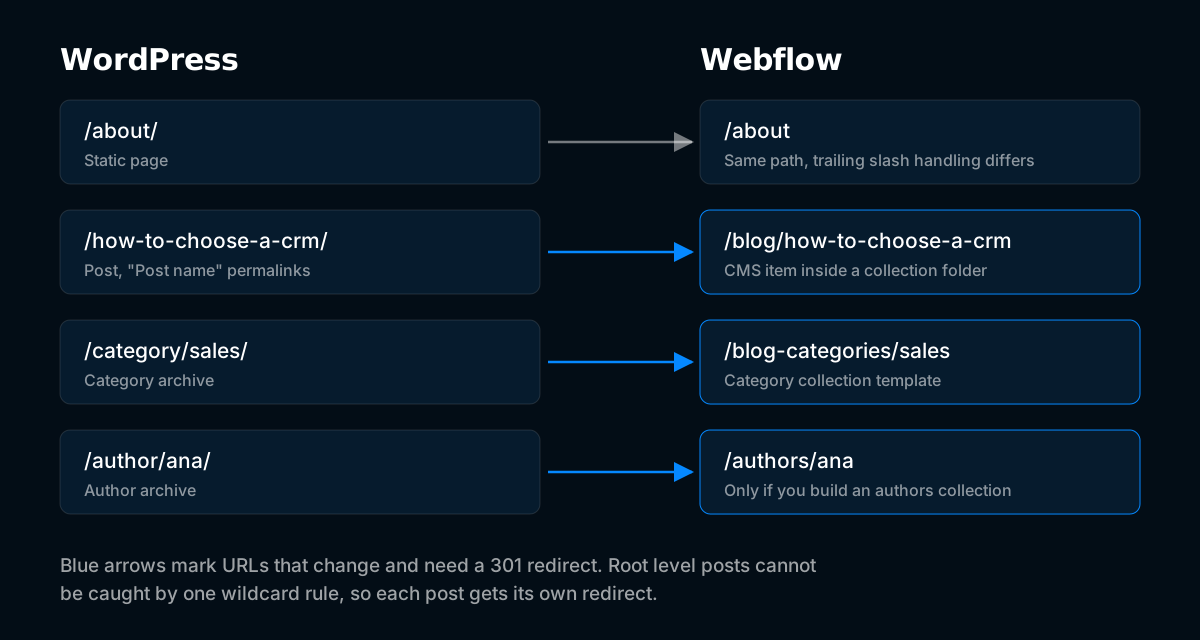
Post URLs almost always change. WordPress can publish posts at the root of the domain, but Webflow CMS items always sit inside a collection folder, such as /blog/post-name.
| Content | Typical WordPress URL | Webflow URL | Redirect needed |
|---|---|---|---|
| Static page | /about/ | /about | Only for the trailing slash, test it |
| Post, "Post name" permalinks | /how-to-choose-a-crm/ | /blog/how-to-choose-a-crm | Yes, one per post |
| Post, date permalinks | /2023/04/how-to-choose-a-crm/ | /blog/how-to-choose-a-crm | Yes, pattern possible |
Post, /blog/ prefix | /blog/how-to-choose-a-crm/ | /blog/how-to-choose-a-crm | Only for the trailing slash |
| Category archive | /category/sales/ | /blog-categories/sales | Yes, pattern possible |
| Tag archive | /tag/crm/ | Tags collection or none | Yes |
| Author archive | /author/ana/ | /authors/ana or none | Yes |
| Pagination | /blog/page/2/ | Query parameter pagination | Redirect to the listing page |
| Feed | /feed/ | RSS feed on the collection | Redirect or leave |
| Attachment pages | /post-name/image-name/ | None | Redirect to the parent post |
Root level posts are the biggest job. A wildcard rule cannot catch them, because a pattern that matches /(.*) matches every URL on the site. Each post needs its own redirect, so a blog with hundreds of posts means hundreds of rules. Build that list from the export, not from memory.
Webflow URLs do not end with a trailing slash. After launch, test how old URLs with a trailing slash resolve, and make every redirect point at the exact final form Webflow serves.
How to set up 301 redirects in Webflow
Redirects are added in Site settings → Publishing → 301 redirects. Each rule is an old path and the path to redirect to, one rule per old URL, and the rules go live when you publish the site. Webflow supports capture groups written as (.*) and references them in the target path as %1, %2 and so on (Webflow Help Center).
| Old path | Redirect to path | Use |
|---|---|---|
/how-to-choose-a-crm | /blog/how-to-choose-a-crm | Individual root level post |
/category/(.*) | /blog-categories/%1 | All category archives |
/tag/(.*) | /blog | Tag archives, if you drop tags |
/author/(.*) | /authors/%1 | Author archives, if you keep them |
/blog/page/(.*) | /blog | Paginated listing pages |
/(.*)/(.*)/(.*) | /blog/%3 | Date based post URLs, only if no other URL on the site has three segments |
Webflow runs redirects in the order they were added, oldest first, so specific redirects need to be added before broad wildcard rules or the wildcard catches them first (Webflow Help Center). Plan the order before entering anything.
Before adding a wildcard, list every live URL it could match. A rule written for old dates can also catch new pages if the pattern is too broad.
Use a pattern only when a whole folder moves and every slug stays the same, for example /blog/(.*) to /guides/%1. When slugs change or URLs sit at root level, write one to one rules.
Mistakes that cost rankings after launch:
- Redirect chains. Point every old URL at its final address. When a URL changes again later, update the older rules instead of adding a new rule on top.
- Sending everything to the homepage. A visitor looking for a post lands on a page that does not answer it, and Google can treat such redirects as soft 404s. Redirect to the closest matching page.
- Forgetting trailing slash variants. WordPress URLs usually end with a slash. Test both forms of every old URL.
- Skipping old files. PDFs and images under
/wp-content/uploads/that have links or traffic need their own rules to the new file or to the page that now holds the content.
After publishing, run the old URL list from your saved crawl through a crawler in list mode. Every URL should return a single 301 to a page that returns 200. Fix any 404, chain or loop before moving on. If the list runs to hundreds of rules, our SEO migration services include building and testing it.
How to recreate WordPress SEO settings in Webflow
On WordPress, an SEO plugin usually handles titles, meta descriptions, canonicals, sitemaps and schema. In Webflow these are split between site settings, page settings and CMS templates, and each has to be configured.
- Titles and meta descriptions. Set them per static page in page settings. For CMS items, bind the collection template's SEO title and description to the imported fields.
- Canonical tags. Set the global canonical URL in site SEO settings so every page references the live domain.
- XML sitemap. Webflow generates one automatically. Check that it lists every collection item and excludes pages you do not want indexed.
- Robots.txt. Edit it in site SEO settings. Make sure nothing that should rank is disallowed.
- Structured data. There is no plugin to generate it. Add JSON-LD in custom code on static pages and on CMS templates, using CMS fields for values such as headline, date and author.
- Open Graph images. Set them per page and bind them on CMS templates.
- Alt text. Carry it over for every image, including images inside rich text.
- Noindex. Set it per page where needed, for example thank you pages and internal utility pages.
- Localization. If the WordPress site used a multilingual plugin, rebuild languages with Webflow Localization and check the hreflang output after launch.
Webflow limits to check before committing
Check Webflow's current plan limits before the build starts, not during import. CMS item counts, collection counts, fields per collection and localization options depend on the plan and have changed over time, so use the figures on Webflow's pricing page on the day you decide.
Also check the features your WordPress site depends on: membership, complex forms, search, comments, e-commerce, heavy custom logic. Anything without a clear Webflow equivalent needs a decision before the migration starts, not after launch.
Step by step WordPress to Webflow migration process
- Save the starting point. Run a full crawl of the WordPress site and save it, along with robots.txt and the sitemaps, and make sure analytics, Search Console and rank tracking will keep running on Webflow. The website migration SEO checklist covers this step in detail.
- Build the URL inventory. Include posts, pages, archives, attachment pages, feeds and files that receive traffic or links.
- Design the Webflow structure. Decide collections, collection slugs and which archives to keep. Collection slugs define every CMS URL, so choose them before import.
- Export and clean the content. Export to CSV, strip shortcodes and page builder markup from the rich text, and check image references.
- Build templates and static pages. Rebuild layouts in the Designer, including the collection templates.
- Import CMS content. Import the CSV, link categories and authors, and spot check items against the originals.
- Rehost images. Confirm no rich text image still points at /wp-content/uploads on the old server.
- Configure SEO settings. Titles, descriptions, canonicals, sitemap, robots.txt, structured data and Open Graph.
- Build the redirect list. Individual rules first, patterns last, each pointing at the final Webflow URL.
- Test on the webflow.io staging domain. Crawl it, compare titles and headings with the saved crawl, and check forms and tracking.
- Launch. Connect the domain, publish, confirm redirects return one 301 to a live page, and submit the new sitemap in Search Console.
- Keep WordPress hosting until you have verified the move. The old server is your fallback and may still hold images referenced somewhere you missed.
- Monitor. Daily checks in the first week, then page by page comparison with the period before launch.
When a WordPress to Webflow migration needs a specialist
Small brochure sites with a few pages can be moved with this guide. Sites with large blogs at root level URLs, several custom post types, multilingual content or strong organic traffic carry more risk, because the number of URLs that change is high and each one needs a correct redirect.
Developtify's SEO migration service handles the URL inventory, redirect map, SEO settings and post-launch monitoring. If the site already moved and traffic dropped, technical SEO services cover finding and fixing what went wrong.
Frequently asked questions
Can I import a WordPress site into Webflow automatically?
No. Webflow states that migrating from another platform is a rebuild, not a transfer. Structured content such as blog posts can be imported into the CMS with CSV, but layouts and pages are rebuilt.
Will my blog post URLs change when moving to Webflow?
Usually yes. Webflow places CMS items inside a collection folder such as /blog/, so posts that sat at the root of the domain on WordPress get a new URL and need a 301 redirect.
Can I keep /blog/post-name URLs from WordPress?
Yes, if the WordPress permalinks already used a /blog/ prefix and the Webflow collection slug is also blog. Only the trailing slash differs, which you should test after launch.
Is Webflow better than WordPress for SEO?
Neither platform ranks a site by itself. Webflow produces clean markup and handles hosting and performance for you. WordPress offers more plugins and more control over URLs. Rankings after the move depend on how the migration is done far more than on the platform.
How long should I keep the redirects?
Permanently. Google recommends at least one year, but old URLs keep receiving visits from external links, bookmarks and emails for years, and a redirect costs almost nothing to keep.